How to scan receipts on iPhone and keep them organized
Receipts fade, curl and get lost. Scanning them on your iPhone takes seconds. The useful part is a naming and filing habit that lets you find the right one a year later.
Also available in: Deutsch · Español · Italiano · Čeština
Why scan receipts at all
A paper receipt is the proof you need for a return, a warranty claim, an expense you want reimbursed or a deduction on your tax return. It is also the document most likely to disappear. It sits in a wallet, goes through the wash, or fades until the total is unreadable.
A scan fixes all three problems. It does not fade, it can be backed up, and with a sensible name you can find it by date or shop in seconds.
Scan a receipt with Notes
Notes can scan without any extra app.
- Open Notes and start a new note, or open a note called “Receipts”.
- Tap the camera button (or the attachment button, depending on your iOS version) and choose Scan Documents.
- Lay the receipt flat on a dark surface and hold the phone above it. The scanner finds the edges and captures the receipt when the phone is steady.
- Tap Save.
- To get a PDF, tap the scan, then the share button, and choose Save to Files.
Scan a receipt straight into a folder with Files
If you keep receipts in iCloud Drive or on the device, Files saves a step. Open the Files app, go to your receipts folder, tap the more button (three dots) and choose Scan Documents. When you tap Save, the PDF lands in that folder. Press and hold it and choose Rename to give it a proper name.
How to scan a long receipt
Supermarket and fuel receipts are often longer than the camera frame. Scan them in parts:
- Start at the top and capture the first section.
- Move down so each new shot overlaps the previous one by a line or two.
- Keep going in the same scanning session, then save once. Every section becomes a page in the same PDF.
Folding the receipt like an accordion and scanning each panel also works. What matters is that the date, the shop name, the items and the total are all readable somewhere in the file.
Tips for readable receipt scans
- Scan within a few days. Most shop receipts are printed on thermal paper, which fades with heat, sunlight and time.
- Flatten it first. Receipts curl. Press them under a book for a minute, or hold the ends down with two coins.
- Use a dark background. White paper on a dark table makes edge detection reliable.
- Pick colour for stamps and logos, greyscale for plain text. Greyscale files are smaller and small print often reads better.
- Check the total before you throw the paper away. Zoom in on the scan. If the amount or date is blurred, scan again.
Name receipts so you can find them later
The name you give a receipt matters more than the folder. Use the same pattern every time:
2026-10-28_hardware-store_drill.pdf
Date first (year-month-day), then the shop, then what you bought. Files then sort by date automatically, and a search for the shop name or the item finds the right one.
File receipts by purpose, not by shop
Most people need only a few receipt folders:
- Receipts: everyday proof of purchase you may need for a return.
- Warranties: receipts for anything with a guarantee, such as electronics, appliances and tools. Keep these as long as the warranty lasts.
- Expenses: receipts you will claim from an employer or a client.
- Tax: receipts you may need for your tax return. Split them by year.
How long you must keep receipts for tax purposes depends on where you live, so check your local rules. A scan is often accepted, but some authorities still have requirements for the original paper.
Keep one main location and one backup in a different place, for example the device plus iCloud Drive or another cloud storage.
How Skanae handles receipts
Skanae is a document scanner for iPhone and iPad. It is not an expense tracker: it does not pull out totals or build expense reports. It turns each receipt into a PDF that is named and filed.
- Free scanning. Capture with Apple’s document camera, multi-page PDFs for long receipts, and saving to local storage or iCloud Drive are free. There is no account to create.
- Name and category suggestions (Skanae Pro). The app reads the text on the receipt on the device and an on-device AI model suggests a descriptive file name and a category. Default categories include Receipts & Proof of Purchase, Bills & Invoices and Warranties & Manuals. You can accept the suggestion or change it before saving. It can be wrong, and when you change the category, similar receipts follow your choice next time.
- Folders by category. Each PDF is saved into a folder named after its category, in every storage you have switched on in Settings: local storage and iCloud Drive for free, OneDrive, Google Drive and Dropbox with Pro.
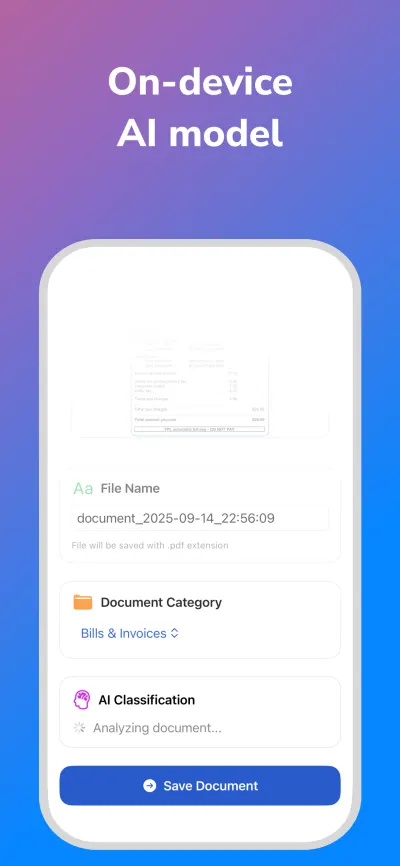
If you scan a receipt now and then, Notes or Files is enough. If you scan several a week and want them filed without renaming each one, a scanner that suggests the name and folder saves time.
Quick answers
- Can I scan receipts with my iPhone without an app?
- Yes. In Notes, tap the camera or attachment button and choose Scan Documents. In Files, open a folder, tap the more button and choose Scan Documents. Both save the receipt as a PDF.
- How do I scan a long receipt on iPhone?
- Scan it in overlapping sections, top to bottom, in one scanning session. Each section becomes a page, and all pages are saved together as one PDF.
- Why should I scan thermal receipts quickly?
- Most shop receipts are printed on thermal paper, which fades with heat, light and time. A scan made in the first days keeps the amounts and dates readable.
- Is there a receipt organizer app for iPhone that works on the device?
- Skanae scans receipts to PDF for free. Skanae Pro reads the receipt on your iPhone and suggests a name and a category such as Receipts & Proof of Purchase. You confirm or change it before saving.
Try Skanae on your iPhone or iPad
Scan, read the text on the device, and file each document where you want it, without creating an account.
