How to scan a document to PDF on iPhone
You do not need an app for a one-off scan. Here is the built-in route, how to get a clean multi-page PDF, and when a dedicated scanner earns its place.
Also available in: Deutsch · Español · Italiano · Čeština
The built-in way: scan in Notes
Your iPhone can already turn paper into a PDF without installing anything. Notes is the quickest route.
- Open Notes and start a new note.
- Tap the camera button (or the attachment button, depending on your iOS version) and choose Scan Documents.
- Hold the phone over the page. The scanner outlines the page and captures it automatically when it is steady. You can switch to manual capture and tap the shutter yourself.
- Repeat for each page. Thumbnails stack up in the corner.
- Tap Save. The pages land in the note as one scan.
- To get a PDF out, tap the scan in the note, then the share button, and choose Save to Files or send it from the share sheet.
The built-in way: scan in Files
If you want the PDF to start life in a folder rather than a note, use Files instead. Open the Files app, go to the folder where it should live, tap the more button (three dots) and choose Scan Documents. Scan the pages, tap Save, and Files creates one PDF containing all of them in that folder. Press and hold the file and pick Rename to give it a real name.
For a one-off letter or a form you need to email, this is genuinely enough.
Tips for a clean scan
- Use even light. Daylight works well; avoid shadows.
- Put the page on a dark, plain surface. Contrast between paper and table helps the scanner find the edges.
- Flatten the page. Folded or curled paper warps the text.
- Keep the phone parallel to the page. The scanner corrects some tilt, but a straight-on shot gives sharper corners.
- Check the edges before you save. After capture you can drag the corners of the crop. A cut-off footer or a missing signature line is the most common mistake.
- Pick the right filter. Colour suits receipts with logos and stamps. Greyscale or black and white makes small text on plain forms easier to read and keeps files smaller.
Make a multi-page PDF
Keep scanning pages in the same session. Do not save after each page, or you will end up with five one-page files. Put the pages in order before you start, and scan from the first to the last. If you scan a double-sided sheet, remember the back.
Where do scanned documents go on iPhone?
Where the PDF ends up depends on where you started the scan:
- Notes: the scan is stored inside the note, in the account the note belongs to (iCloud or On My iPhone). It is not a separate file until you tap the scan, tap the share button and choose Save to Files.
- Files: the PDF is saved in the folder you had open when you tapped Scan Documents. Look in Recents in the Files app if you are not sure which folder that was.
- Skanae: each scan is saved as a PDF in a Skanae folder, in a subfolder named after its category, in every storage you have switched on in Settings.
If a scan seems to be missing, search for it in Files. In Notes, search and pick the Notes with Scanned Documents suggestion to list every note that contains a scan.
Make the PDF searchable
A scan is a photograph of text. A searchable PDF also knows which characters are on the page, which is what lets you search for an invoice number or select a line to copy. That recognition step is called OCR.
Recent versions of iOS recognise text in photos and scans, so you can often long-press a word in a scanned page to select it, and Spotlight and Files search can sometimes find it. How much works depends on your iOS version and where the file was saved, so test it: scan a page, then search for a distinctive word.
If you copy numbers out of a scan, check them against the paper. OCR can misread a 5 as a 6.
Skanae does not produce this kind of PDF. It saves your scan as an image PDF, with no text layer. If you need to search inside the file itself, use a tool that adds a text layer (OCR) to PDFs, or keep the original in Files, where iOS may be able to find the words.
Name and file it as you scan
Default names like “Scan 14” are useless in six months. Rename at the moment of saving, while you still know what the document is. A pattern that works: 2026-10-supplier-what.pdf, for example 2026-10-energy-bill.pdf. Starting with the year and month keeps files sorted by date in any folder.
Then drop the file into a folder that matches what it is. If you use iCloud Drive, a handful of top-level folders is easier to maintain than a deep tree.
Where Skanae differs
Skanae is a scanner app for iPhone and iPad. Here is what it does, and where it is the same as the built-in option.
Capture uses Apple’s own document camera, the same kind of edge detection and perspective correction you get in Notes, so raw scan quality is comparable. Pages are combined into a single PDF. The difference is what happens next.
- Free scanning. Capture, multi-page PDF, and saving to local storage or iCloud Drive are free.
- Automatic category and name (Skanae Pro). The app reads the text on the scan with Apple Vision, on the device. It uses that text, and the page image, to have an on-device AI model suggest a category (for example Bills & Invoices) and a descriptive file name, instead of a timestamp. You can change both before saving. The text is used for naming and sorting only; the saved PDF stays an image PDF.
- Your choice of storage. Local storage and iCloud Drive are free; OneDrive, Google Drive and Dropbox are Pro. Scans are saved to every storage you have switched on in Settings. Files go into a folder named after the category.
- No account. There is nothing to sign up for.
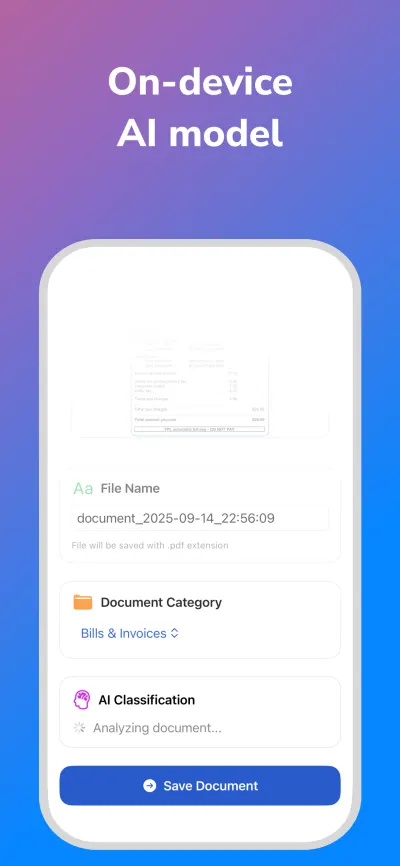
If you only scan the odd document, Notes or Files is fine. If you scan paperwork regularly and hate renaming, an app that names and files for you saves time.
If you want to know how that handling affects privacy, read the offline scanner guide.
Quick answers
- Can I scan a document to PDF on iPhone without an app?
- Yes. Open Notes and choose Scan Documents, or open Files, tap the more button and choose Scan Documents. Both create a PDF from one or more pages.
- How do I scan several pages into one PDF?
- Keep scanning in the same session without saving between pages, check the page count in the preview, then save once. All pages end up in a single PDF.
- Where do scanned documents go on iPhone?
- A scan made in Notes stays inside that note until you share it or save it to Files. A scan made in Files is saved as a PDF in the folder you had open.
- Why is my scanned PDF so large?
- Colour scans of many pages add up. Use the greyscale or black and white filter for plain text, scan only the pages you need, and keep separate documents in separate PDFs.
- Is a scanned PDF searchable?
- Not automatically. Recent iOS versions recognise text in scans, but how much you can search depends on your iOS version and where the file is saved, so test with a word from the page.
Try Skanae on your iPhone or iPad
Scan, read the text on the device, and file each document where you want it, without creating an account.
