How to organize scanned documents automatically
A short category list, a naming pattern that stays searchable and a backup habit will tame most paperwork. Here is the system, and how Skanae automates part of it.
Also available in: Deutsch · Español · Italiano · Čeština
Start with a short list of categories
Most filing systems fail because they have too many folders. Aim for ten to fifteen top-level categories and put everything in one of them. For household and freelance paperwork, this set covers most of it:
- Identity: passports, ID cards, driving licences, birth certificates.
- Money: bank statements, tax returns, pay slips, loan papers.
- Bills & invoices: utilities, phone, and invoices you send or receive.
- Receipts: proof of purchase, expenses you may claim.
- Insurance: policies, claims, correspondence.
- Home and vehicle: lease or mortgage, car registration, service history.
- Medical: results, prescriptions, referrals.
- Work and clients: contracts, quotes, signed agreements.
- Warranties & manuals: so you can find them when something breaks.
- Other: a catch-all, reviewed now and then.
Freelancers may want a split by client or by tax year inside Bills and Work. Add that second level only when a category gets crowded.
Name files so you can search them
A good name tells you what a file is without opening it. Use the same pattern every time:
date_issuer_what, for example 2026-03-14_city-water_invoice.
- Put the date first, as year-month-day, so alphabetical order is chronological.
- Use the issuer or person next, because that is what you will search for.
- Describe the document type last.
- Avoid spaces and special characters, which cause trouble in some systems. Hyphens and underscores are fine.
- Keep it under about 40 characters.
Names like “Scan001” defeat search because nothing in them describes the document.
What to keep and for how long
Rules differ by country and by document, so check your local tax authority. As a general approach, there are three tiers:
- Keep indefinitely: identity documents, birth and marriage certificates, property deeds, signed contracts that still apply.
- Keep for several years: tax records and the receipts behind them, invoices, insurance policies. Many people use a fixed number of years from the filing date, but your own requirement may be different.
- Keep until the warranty or return window ends: receipts for ordinary purchases, manuals.
Scanning does not always replace the original. Some documents, such as a deed or a notarised paper, may need the paper kept. Ask the issuer if unsure.
Back it up properly
A single copy on one phone is not a filing system. Follow the 3-2-1 idea: three copies, on two kinds of storage, with one somewhere else. In practice, that can be the phone, a cloud service you trust, and an external drive that you refresh once a year. Once a year, open a few files from the backup to confirm they actually open.
How Skanae’s auto-categorisation works
Skanae is built for exactly this workflow. With Skanae Pro and AI categorisation switched on in Settings, it does the following when you finish a scan, all on the device:
- Reads the text on the page using Apple Vision.
- Tidies and trims it, keeping the lines that look most informative, so the model is not flooded with noise.
- Asks a local AI model to choose one category from your list and suggest a descriptive file name, looking at the page image as well as the text.
- Shows you the result before saving. You can change the category and the name.
It can be wrong, and it learns when you correct it
The model suggests; you decide. If it picks the wrong category and you change it, Skanae stores a compact list of distinctive words from that document, together with the category you chose. The next time a scan shares enough of those words with one you corrected before, your earlier choice wins over the model’s. This is kept on the device, and it works for similar documents such as the monthly bill from the same supplier.
If the model’s answer is garbled, Skanae tries to match it to one of your category names, and otherwise files the scan under Other Documents. That is a safety net, not a guarantee of accuracy, so skim the suggestion until you trust it.
Custom categories
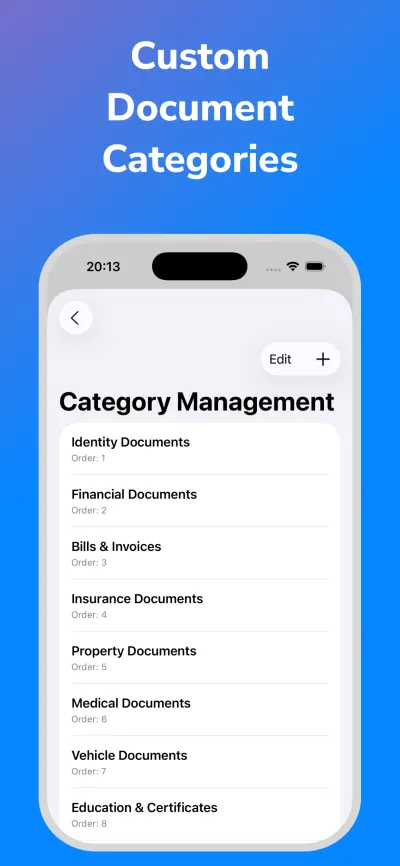
Skanae starts with a default set covering identity, finance, bills and invoices, receipts, insurance, property, medical, vehicle, education, warranties, travel and government papers. You can edit the list and add your own, such as a client name or “Taxes 2026”. The model chooses only from the names you have, so use clear ones.
Choose where files go
Skanae can save to local storage, iCloud Drive, OneDrive, Google Drive or Dropbox. Local and iCloud are free; OneDrive, Google Drive and Dropbox are Pro. Each scan is saved to every storage you have switched on in Settings. Files are placed in a folder named after the category, so your cloud storage ends up organised the same way as the app.
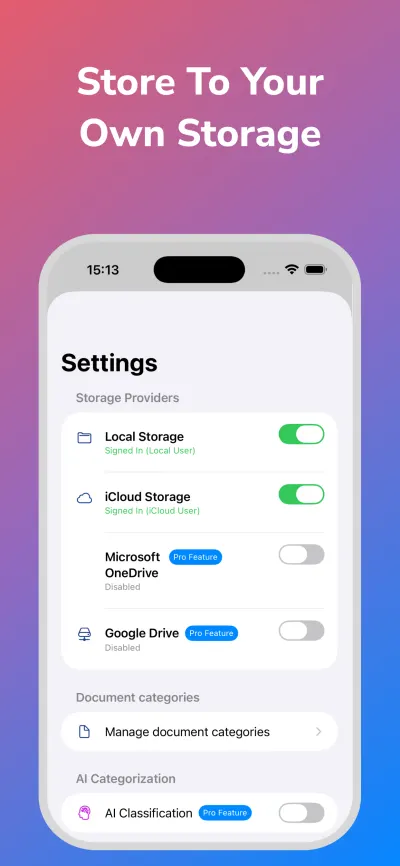
Files go only to the storage providers switched on in Settings. iCloud Drive is on by default, so turn it off if you want scans to stay on the device. For how that works, see the offline scanner guide.
Quick answers
- How do I automatically categorize scanned documents?
- Use a scanner that reads the text and suggests a category when you save. Skanae Pro does this on the device, lets you correct the category, and remembers your correction for similar documents.
- What should I name scanned invoices and receipts?
- Start with the date as year-month-day, then the issuer, then the document type, for example 2026-03-14_city-water_invoice. This keeps files in date order and searchable.
- Where should I store scanned documents?
- Keep one main location you trust and one backup in a different place. Skanae can save to local storage, iCloud Drive, OneDrive, Google Drive or Dropbox.
Try Skanae on your iPhone or iPad
Scan, read the text on the device, and file each document where you want it, without creating an account.
